Do you use Tmovie TV on your phone but want to watch movies from this app on your big TV screen? Well, the latest version of this app has just made it possible to utilize built in Chroemcast that enables you to cast this app directly to your big TV screen to watch movies from this app on your television, and this guide walks you through the whole process to cast movies from this app on your phone to TV for a lag-free viewing experience.
Once you successfully cast this app to TV, you not only get to watch videos from this app directly on your TV screen but also get the complete control to adjust the playback from your phone, so if you have to pause, rewind or play another movie, you can simply do it from teh phone and it will seamleslsy apply to the TV as well – no hassle to use remote.
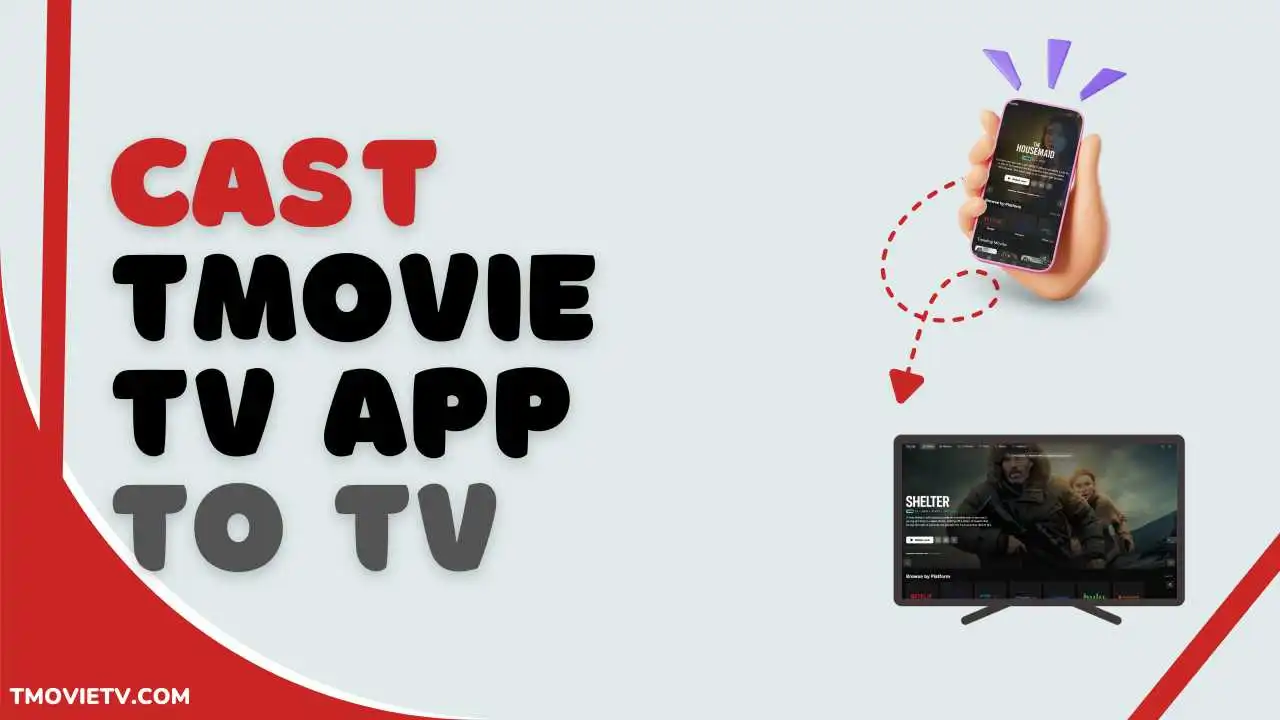
Does Tmovie TV APK Support Chromecast?
Those who are using the latest version of Tmovie TV might already know that the developer introduced the Chromecast feature into this app which is quite a demanding feature in streaming platforms these days as installing a third party app on Smart TV require you to go through a lengthy process which can be easily avoid with this casting feature which enables them to stream movies and shows to Smart TV without having the Tmovie app installed on your TV.
Chromecast comes as a great way to enjoy the benefit of this app on a TV screen, as built-in Chromecast comes by default with most Android-based smart TV devices. This enable to seamlessly way to access it on your TV.
To begin casting using Chromecast, just play any video and tap the Chromecast button in the top-right corner. Make sure your phone and TV are on the same WiFi, then you’re golden! Control the Tmovie TV app from your phone to easily skip, rewind, and switch quality from 360p to 720p. Enjoy smooth, delay-free streaming!
Things to Do Before Casting Tmovie TV App
I know you don’t have time to read instructions, so we cut to the chase and here are some of the vital things you need to do before get straight to casting this app to TV.
1. Installed Updated App:
Before casting Tmovie TV, always remember to install the updated app. If you’re using the old version, you may not see the Chromecast option, as this is a new feature added in the most recent update.
2. Both Devices Are on the Same Wi-Fi:
Chromecast only works if you connect both devices to the same wifi. To cast Tmovie on your Smart TV, you have to connect your mobile phone and smart TV to the same wifi.
3. Check If Your TV Supports Chromecast:
Check whether Chromcast feature works on your TV or not. Firstly, open the Tmovie app, tap any video you would like to watch. You will find a cast icon on the upper right corner of the screen, which looks similar to wifi icon. Tap on it and see if your TV comes up on the list or not. If your TV is on the list, that means it supports.
Detailed Guide on How to Cast Tmovie TV APK to your TV (Using Chromecast)?
Follow this easiest method to cast the Tmovie app to any compatible smart TV device in order to cast movies from this app to the TV screen.
Step 1: Turn on your TV and connect it to a stable wifi connection, then make sure your smartphone, on which the Tmovie app is installed, is connected to the same network.
Step 2: Launch the Tmovie TV app on your phone and explore its content library to find a worthy movie you would like to watch at the moment.
Step 3: Once you find what you want to watch, start streaming it on your phone, then play the video on full screen mode.
Step 4: You can find a Chromecast icon inside the player, so click on the ‘Cast’ icon and wait till it scans the nearest available devices.
Step 5: Tap on your TV model name that’s on the screen to pair it with your TV.
Step 6: When connected, the movie will automatically start playing on your TV, and you can lock the phone after it is cast successfully and enjoy watching the movie on your TV screen for a bigger, better, and more cinema theatre-like viewing.
FAQs
Why is the Cast icon not showing in Tmovie TV App?
If the cast icon is not showing, you may be using an outdated version of this app, so try to use the latest version to get the cast feature enabled.
Is casting Tmovie TV App free or does it require a subscription?
Yes, you can cast the Tmovie TV on your smart TV for free without buying any subscription plan.
Why is there no sound when casting Tmovie TV App to the TV?
Maybe your phone and TV are not conncted with the same wifi that is causing problems in the media playback.
How do I fix buffering issues while casting Tmovie TV?
Buffering problem on Tmovie app can be fixed by reducing the video quality, like if you’re streaming at 1080p then down the resolution to 720p to reduce buffering significantly.
Conclusion
Tmovie TV supports Chromecast and is perfect for watching regional and international movies, web series, and drama on a larger screen. Chromecast allows users to stream content from this app on their phone to TV. Tmovie’s home feed is specially designed to give content according to your preferences. Its simple interface, huge content library, and playback convenience make it appealing for users around the world, so you must try the casting feature that you can quickly setup pursuing the detailed guide shared above, which I hope you found helpful.